If your Frontier Fiber Wi-Fi keeps disconnecting, the most common causes are router placement issues, Wi-Fi channel congestion, or outdated firmware. Start by checking your router's position, switch to a less congested Wi-Fi channel, and ensure firmware is up to date — these three steps resolve most intermittent connection drops.
A solid fiber connection means nothing if your Wi-Fi keeps cutting out. Frontier Fiber delivers reliable speeds to your ONT, but the wireless signal between your router and devices can be disrupted by interference, distance, and configuration issues. This guide walks through every fix, from quick adjustments to advanced solutions. Need immediate help? Frontier at .
Quick Diagnostic: Is It Wi-Fi or Your Fiber Connection?
Before troubleshooting Wi-Fi specifically, confirm the issue isn't with the fiber line itself:
- Connect a device directly to your router with an Ethernet cable
- Monitor the wired connection for 10-15 minutes
- If the wired connection drops too, the issue is with the ONT or fiber line — see our slow speeds troubleshooting guide
- If the wired connection stays stable, your fiber is fine and the issue is wireless — continue with the fixes below
Fix 1: Optimize Router Placement
Poor router placement is the number one cause of Wi-Fi drops. Radio signals weaken as they pass through walls, floors, and objects. Follow these placement guidelines:
- Central location: Place the router near the center of your home, not in a corner or closet
- Elevated position: Mount it on a shelf or wall at roughly chest height — signals radiate outward and downward
- Clear line of sight: Avoid placing it behind TVs, inside entertainment centers, or behind fish tanks (water blocks signals effectively)
- Away from interference sources: Keep at least 3 feet from microwaves, cordless phones, baby monitors, and Bluetooth speakers
- Away from metal objects: Metal reflects and absorbs Wi-Fi signals. Avoid placing near filing cabinets, refrigerators, or metal shelving
Fix 2: Change Your Wi-Fi Channel
In apartments and dense neighborhoods, dozens of routers compete on the same Wi-Fi channels, causing interference that drops connections. Here's how to find a cleaner channel:
For the 2.4 GHz band:
- Use channels 1, 6, or 11 — these are the only non-overlapping channels
- Download a Wi-Fi analyzer app (like WiFi Analyzer on Android or AirPort Utility on iOS) to see which channels your neighbors use
- Switch to the least congested channel
For the 5 GHz band:
- The 5 GHz band has more available channels and less congestion
- Channels in the DFS range (52-144) are often empty because many devices don't support them
- If your router supports DFS channels, try switching to one for less interference
Access your router's settings through the admin panel (typically 192.168.1.1) or through the Frontier router app to change channels.
Fix 3: Update Router Firmware
Outdated firmware can cause random disconnections, security vulnerabilities, and performance issues. Frontier pushes firmware updates automatically to their branded routers, but they sometimes require a manual restart to apply.
- Log into your router's admin panel
- Navigate to the firmware or software update section
- Check for and install any pending updates
- Restart the router after updating
If you use Frontier's eero mesh system, updates are applied automatically through the eero app. Open the app and check Settings > Software Updates to verify you're on the latest version.
Fix 4: Separate Your Wi-Fi Bands
Many modern routers combine 2.4 GHz and 5 GHz into a single network name (SSID) and let the router decide which band to assign each device. This "band steering" doesn't always work well and can cause devices to bounce between bands, dropping the connection briefly each time.
- Create separate SSIDs for 2.4 GHz and 5 GHz (e.g., "HomeWiFi" and "HomeWiFi-5G")
- Connect nearby, high-bandwidth devices (TVs, gaming consoles, laptops) to the 5 GHz network
- Connect distant or low-bandwidth devices (smart home sensors, security cameras) to 2.4 GHz
Fix 5: Consider a Mesh Wi-Fi System
If your home is larger than 1,500 square feet or has multiple floors, a single router may not provide adequate coverage. Dead zones cause devices to drop and reconnect repeatedly.
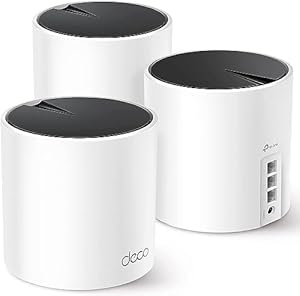
Frontier offers the eero mesh system, which uses multiple access points to blanket your home in consistent Wi-Fi coverage. The eero app provides diagnostics for each node and device, making it easy to identify and resolve problem areas.
Alternatively, third-party mesh systems from TP-Link, Netgear, or Asus work well with Frontier Fiber — just connect the primary mesh unit to the Frontier ONT or router via Ethernet.
Fix 6: Check for Device-Specific Issues
If Wi-Fi drops on only one device, the problem is likely with that device rather than your network:
- Forget and reconnect: Remove the saved Wi-Fi network on the device and reconnect from scratch
- Update Wi-Fi drivers: Especially important on Windows laptops — outdated drivers cause frequent disconnections
- Disable Wi-Fi power saving: Some laptops turn off Wi-Fi to save battery. In Windows, go to Device Manager > Network Adapters > your Wi-Fi adapter > Properties > Power Management and uncheck "Allow the computer to turn off this device to save power"
- Reset network settings: On phones and tablets, reset network settings to clear corrupted Wi-Fi configurations
Fix 7: Contact Frontier Support
If none of the above fixes resolve the issue, the problem may be with Frontier's equipment. Contact support at and request:
- A remote diagnostic of your ONT and router
- A router replacement if yours is malfunctioning
- A technician visit to check wiring and signal strength
Frequently Asked Questions
Why does my Frontier Wi-Fi drop at the same time every day?
Consistent drops at the same time often indicate peak-hour congestion in your neighborhood's Wi-Fi spectrum, a scheduled firmware update on the router, or interference from a device that operates on a schedule (like a sprinkler controller or microwave). Try changing your Wi-Fi channel to avoid interference.
Does Frontier's eero system fix Wi-Fi drops?
In most cases, yes. The eero mesh system eliminates dead zones by using multiple access points throughout your home. It also features automatic channel selection and seamless handoff between nodes, which prevents the brief disconnections you get when a device switches between access points.
Should I use my own router with Frontier Fiber?
You can use your own router with Frontier Fiber. Connect it to the ONT's Ethernet port and configure it with DHCP. High-quality third-party routers often have better range and more configuration options than ISP-provided equipment. Frontier does not charge a router rental fee on most fiber plans.
How can I tell if my router is failing?
Signs of a failing router include frequent reboots (check the uptime in admin settings), one or more indicator lights showing red or amber, unusually hot casing, and Wi-Fi that disconnects even when you're close to the router. If your router is more than 4-5 years old and showing these symptoms, replacement is likely the fix.
Will a Wi-Fi extender fix my Frontier Wi-Fi drops?
Wi-Fi extenders can help with coverage in distant rooms, but they cut your effective speed in half because they receive and retransmit the signal on the same channel. A mesh system is the better solution for persistent drops, as it uses dedicated backhaul channels to maintain full speeds between nodes.
Related guides: Frontier Fiber Overview | Fix Slow Speeds | Outage Troubleshooting | Equipment Return Guide
Check Frontier Fiber PlansWifi Dropping Value Analysis
Evaluating Wifi Dropping's value requires looking beyond the monthly rate to understand the total cost of service. Equipment fees, installation charges, data overage costs, and price increases after promotional periods all factor into the real cost.
Monthly cost components: Your bill includes the plan rate plus any equipment rental fees ($10-15/month for modem and router). Some plans include equipment, while others charge separately. Taxes and regulatory fees typically add another $5-10/month depending on your location.
Promotional vs. regular pricing: Most Wifi Dropping promotional rates last 12-24 months before reverting to regular pricing. The increase can be significant — sometimes $20-40/month more. Factor the regular rate into your decision, especially if you plan to stay with the service long-term.
Hidden costs to watch for: Early termination fees on contract plans, professional installation charges, and data overage fees can add unexpected costs. Ask about all potential charges before committing to a plan.
How Wifi Dropping Compares
Comparing Wifi Dropping against alternatives at your address provides the context needed for an informed decision. Key comparison factors include price per Mbps, contract requirements, data limits, and customer satisfaction ratings.
In competitive markets, Wifi Dropping generally prices plans close to regional averages. The best value often comes from matching the right plan tier to your actual usage needs rather than defaulting to the cheapest or fastest option available.
Technology type significantly affects the comparison. If Wifi Dropping offers fiber at your address while competitors only provide cable, the reliability and symmetric speed advantages may justify a modest price premium. Conversely, if multiple fiber options are available, price and plan features become more important differentiators.
Disclosure: Some links on this page are affiliate links, meaning we may earn a commission if you sign up through them at no additional cost to you. Our recommendations are based on independent research and testing. We are committed to providing honest, unbiased information to help you make informed decisions about your internet service. Pricing and availability are subject to change.