What to Expect, in Order
Getting Frontier Fiber connected follows a fairly predictable sequence, even though the details at each step vary by address. You'll schedule an appointment (or opt into self-install if your unit qualifies), do a short round of prep in the days before the visit, go through the install itself — which runs anywhere from a straightforward hour to a multi-visit job depending on what infrastructure already exists at your address — then spend some time on day-one setup: router placement, network naming, and a wired speed test before anyone leaves. From there, the work isn't quite done: the first billing cycle and the first month of real-world use are when quoted plans, waived fees, and actual performance either hold up or don't. The sections below are organized in that order, so skip to the stage you're actually in.
Before the Technician Arrives
Confirm what "available" means for your specific address. A quote you got online is very likely a ZIP-estimate or FCC-reported figure, not a guarantee that fiber is live at your unit. Only a provider-confirmed-address check — ideally done when you schedule, and again when the technician is dispatched — tells you the install is actually going to happen as booked. If nobody has confirmed at the address level, ask before the appointment window, not during it.
Decide where the ONT goes, and know why it matters. The Optical Network Terminal is the box that converts the fiber signal to something your router can use. It needs to sit near where the fiber line enters the home — often a garage wall, basement, or utility closet — and it needs continuous power. Picking the spot in advance (rather than letting the technician default to the closest wall) matters because the ONT's location effectively sets your router's location too, which affects Wi-Fi coverage for the rest of the home.
Sort out exterior and interior access ahead of time. Fiber technicians typically need to work outside (at a pole, pedestal, or underground vault) and inside (running a line to the ONT location and testing from there). If you're in a multi-unit building, gate codes, buzzer access, or a property manager's presence may be required — confirm this the day before, not the morning of.
Know who needs to be home and for how long. Professional installs generally require an adult present for the full visit, since the technician needs sign-off on placement and will walk through setup with you. If pets react badly to strangers or open doors, crate them or arrange a sitter — not because it's generic advice, but because an install visit involves the technician moving between outside and inside repeatedly, often with doors propped open.
If you're moving from another provider, note your old equipment's return window before install day, so you're not juggling two return deadlines at once (more on this in the first-30-days section).
What Happens During a Professional Install
A typical visit breaks into four phases, though the order and duration shift based on what's already at the address:
1. The exterior fiber run. If a fiber drop already exists at the property (common if a previous tenant had Frontier Fiber, or if the street was pre-wired), this step is quick — the technician just needs to activate and test it. If not, this is where timelines diverge most: an aerial drop from a nearby pole is usually faster than a buried line that requires trenching, boring, or coordination with your property's landscaping. This is also the step most likely to require a follow-up visit if underground work is needed.
2. ONT mount and activation. The technician mounts the ONT at the agreed location, connects it to the fiber line, and confirms the signal is live.
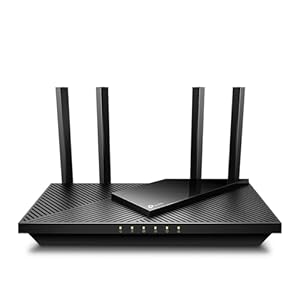
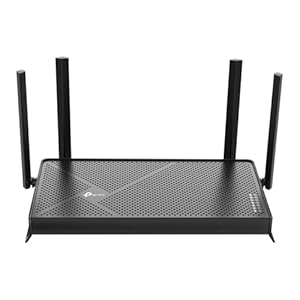
3. Router setup and Wi-Fi configuration. The provided router (or your own, if you're using a compatible one — see below) gets connected to the ONT, and the technician sets your network name and password, usually letting you customize both on the spot.
4. Walkthrough and testing. Before the technician leaves, they should run a wired speed test — plugged directly into the router, not over Wi-Fi — and confirm it's in line with the plan you ordered. This is the single most important moment of the visit to not skip.
A straightforward activation (fiber already present, no interior wiring needed) can be done well under an hour. An install requiring new exterior work or interior wiring runs considerably longer and, in some cases, requires scheduling a second appointment. Treat any time estimate you're given as a range, not a promise — the variable isn't the technician's competence, it's what infrastructure already exists between the street and your wall.
The Self-Install Path
Self-install is typically offered when the address already has an active or recently active fiber connection — for example, a unit where a previous resident had Frontier Fiber, or new construction that was pre-wired during development. If you qualify, you'll typically receive a kit containing the ONT (sometimes pre-installed by the building), a router, cabling, and setup instructions tied to a companion app.
In practice, self-install takes most people well under an hour if everything goes as expected: plug in the ONT, connect the router, follow the app's activation steps, and run the connection test it prompts you through.
The two most common snags:
- The ONT port hasn't been activated on the network side yet. This isn't something you can fix locally — if the app can't detect a signal at all after you've double-checked physical connections, the issue is almost always account/port activation on the provider's end, and it requires contacting support rather than re-plugging cables repeatedly.
- App pairing failures. If the app won't recognize the router or gets stuck mid-setup, a full power cycle of both the ONT and router (unplug both, wait about 30 seconds, plug the ONT in first, then the router once it's stable) resolves this more often than reinstalling the app.
If self-install stalls for more than a brief troubleshooting window, it's usually faster to request a technician visit than to keep retrying — self-install failures are rarely something patience alone fixes.
When the Install Doesn't Go Smoothly
This is the part most installation guides skip, and it's where things most commonly go wrong in practice:
The appointment window is missed or the visit gets rescheduled. This happens most often when exterior work (trenching, pole access, permit requirements) turns out to be more involved than anticipated. Ask for a specific reason and a firm rebooked window rather than an open-ended "we'll follow up."
The address turns out not to actually be serviceable, despite being quoted as available. This is exactly why the confidence-level distinction matters: a ZIP-estimate or FCC-reported "available" designation covers an area in general, not your specific unit. If a technician arrives and finds no viable fiber path to your address, that's a provider-coverage estimate failing to hold up as a provider-confirmed-address reality — not a broken promise, but a gap in how availability is typically communicated. Ask what your actual options are (a different technology at that address, a required build-out timeline, or a refund of any prepaid fees).
Signal or ONT-light problems on day one. Most ONTs use status lights to indicate a healthy connection. If a light indicates a signal or line problem shortly after install, don't assume it will self-resolve — reseat the fiber connection if you're comfortable doing so, but a persistent fault light generally means a line-side issue that needs a technician, not a settings fix on your end.
Speeds test low immediately after the technician leaves. Before the technician's van pulls away, run a second wired speed test yourself and compare it to the plan you're paying for. If it doesn't match, ask the technician to check the ONT's sync rate before they go — it's far easier to resolve on-site than in a callback.
Escalating. If a first support contact doesn't resolve an install problem, ask specifically for a field-service or install-escalation ticket rather than a general support queue — it routes to the team that can actually dispatch a follow-up technician or override a scheduling conflict.
Getting Your Setup Right on Day One
Router placement still matters on fiber, even though the connection itself doesn't degrade over distance the way older technologies do — the limiting factor becomes your Wi-Fi signal, not the fiber line. Central, elevated, unobstructed placement beats a closet or basement corner.
Wired vs. Wi-Fi is worth deciding deliberately, not by default. Anything stationary and bandwidth-heavy (a desktop, a streaming box, a game console) benefits from an Ethernet run even on a fast connection, because it removes Wi-Fi contention entirely.
Larger or multi-floor homes often need mesh Wi-Fi, not just a stronger single router. If your home has more than one or two floors or thick interior walls, ask during the visit whether a mesh add-on is included or an extra line item — get a straight answer on which before agreeing to it.
Set up a separate guest network with WPA3 (or the strongest security mode the router supports) at setup time rather than later — it's a five-minute task during install and a much longer one after you've already onboarded a dozen devices to the main network.
Confirm the plan you're paying for is the plan that got provisioned. The wired speed test at the end of the visit (mentioned above) is the check for this — provisioning mismatches happen, and they're far easier to fix while the technician is still on-site than after the fact.
First 30 Days: What to Watch
Check your first bill against the quoted plan line by line. Confirm the plan tier name matches what you ordered, and that any promotional rate applied correctly.
Verify any waived-fee promise actually posted. Installation-fee waivers and similar promotions sometimes require a separate credit to appear on a later statement rather than being reflected as no charge upfront — check that the credit showed up, not just that you weren't charged at the visit.
Track your equipment-return deadline if you switched from another provider. Returning old equipment late is one of the most common sources of surprise charges in the weeks after a provider switch, and the deadline usually starts running from your disconnect date, not your Frontier install date.
Re-run a speed test from multiple rooms after normal life resumes. The test the technician ran was likely in an empty room with a wired connection. A test a week or two later — from where you actually use the connection, with your normal number of devices online — is the more honest read on real-world performance, which is also the focus of federal broadband measurement research.
Fiber-Specific Things Worth Knowing
Battery backup covers phone service, not your internet connection, during a power outage. If your ONT includes a battery backup option, understand what it actually preserves: for most fiber setups, backup power keeps a landline-style voice service alive, not your data connection, since the router and any Wi-Fi equipment also need power to function.
Fiber installs vary more by address than cable installs typically do. This comes down to how the physical network is built: aerial fiber on utility poles installs differently than buried fiber requiring trenching, and your distance from the nearest distribution point can add complexity a cable install wouldn't have. This is the real reason install timelines are ranges rather than fixed numbers.
"Installation fee waived" promotions typically cover the standard professional install labor — they don't necessarily cover non-standard work like trenching, conduit installation, or wiring runs beyond a typical distance. Ask specifically what counts as "standard" for your address before assuming a waiver is comprehensive.
How We Verified This
The install-process steps in this piece are based on provider-published installation and support documentation describing standard fiber activation, ONT setup, and self-install procedures. Availability-confidence framing (ZIP-estimate, FCC-reported, provider-coverage, provider-confirmed-address, user-confirmed-orderable) reflects how broadband deployment and availability data is generally reported and confirmed in the industry, including FCC broadband deployment data as a baseline for area-level estimates. What this piece does not and cannot verify: any individual reader's exact appointment timeline, the specific infrastructure present at a given address, or a per-address price quote — those require a provider-confirmed-address check or a technician visit. Pricing, fee, and speed figures specific to current Frontier Fiber offers change by market and promotional period, so this page intentionally doesn't publish a number for them — check Frontier's own current rate card and offer terms for your address, and treat any dollar figure you see quoted elsewhere as a snapshot that may already be outdated.
Frequently Asked Questions
How long does a Frontier Fiber install actually take? It depends heavily on whether fiber infrastructure already exists at your address. A simple activation can take under an hour; installs requiring new exterior work can take considerably longer and sometimes need a second visit. Ask for a range, not a single number, when you schedule.
Is there an installation fee, and can it be waived? Fee amounts and waiver terms change and vary by offer, so this page doesn't publish a figure that could go stale — ask Frontier directly for the current installation fee at your address before scheduling. If you're told a fee is waived, confirm in writing what "standard installation" covers at your address.
Can I use my own router instead of the provided one? Often yes, provided your router is compatible with the ONT's connection type and supports the plan speed you're on — but compatibility should be confirmed before the visit, not discovered during it, since using an incompatible router can turn a simple activation into a longer troubleshooting session.
What if the technician says my address isn't actually serviceable, even though I was quoted as available? This is a real possibility, since online quotes are often ZIP-estimate or FCC-reported figures rather than a provider-confirmed-address check. Ask what alternative options, timelines, or refunds apply, and get the answer in writing.
Can I decline the ONT battery backup or a mesh Wi-Fi add-on during the visit? In most cases these are optional add-ons rather than required components of the install — ask directly whether each one is included in your base plan or a separate line item before agreeing to it on the spot.
What happens to my old provider's equipment if I'm switching? You'll typically need to return it separately, on that provider's own deadline, which is usually tied to your disconnect date rather than your new install date. Track both deadlines independently to avoid an unreturned-equipment charge.
Can I reschedule my install appointment, and will it push back my start date? Yes, appointments can usually be moved, though rescheduling shifts your service start date accordingly. If you need to move a date, doing so as early as possible keeps more options open on the replacement window.
Bottom Line
Most of what determines a smooth Frontier Fiber install has nothing to do with luck: confirm your address is actually serviceable before the appointment, pick your ONT location deliberately, run a wired speed test before the technician leaves, and check your first bill line by line. The variable that trips people up most is treating a ZIP-level "available" as the same thing as a confirmed install at their specific address — it isn't, and the gap between those two is where most install-day surprises come from.