Quick answer: what actually matters for work-from-home internet
If you're choosing or keeping an internet plan for remote work, four things determine whether it holds up: upload speed (not just download), reliability under real conditions (jitter, packet loss, uptime — not the advertised top speed), latency low enough for video calls and VPN sessions to feel normal, and a backup plan for the day your primary connection drops during something that matters. Everything else — the specific plan name, the router you buy, the tax question — is secondary to getting those four right. The rest of this guide walks through each one, plus how to diagnose what you already have before you spend money switching.
Affiliate disclosure: We may earn a commission when you order through links on this page. Pricing, speeds, and availability vary by address and are subject to change; verify current terms with the provider before ordering.
Want help choosing? Talk to an internet specialist: 844-287-2645
Free consultation — compare plans and check availability at your address. No obligation.
Why home internet is now a work-critical utility
For a lot of households, home internet used to be judged on whether Netflix buffered. Now it's the thing standing between you and a client call, a deployment window, or a file that has to sync before end of day. A dropped VPN session mid-task, a video call that freezes at the wrong moment, or a connection that goes down during a scheduled meeting isn't just annoying — it can cost you time, credibility, or in some jobs, actual income.
That doesn't mean you need to panic-upgrade to the most expensive plan available. It means the criteria for "good enough" internet changed once your living room became your office, and it's worth a deliberate look at whether your current setup matches what you're actually asking it to do.
Speed and upload requirements by remote-work task
Most people shop for internet by download speed because that's the number providers lead with. For remote work, upload speed matters just as much, sometimes more, and it's the number that's most often under-provisioned on residential plans.
Here's how the main WFH tasks break down:
| Task | What stresses the connection | Why upload matters | |---|---|---| | Video conferencing (Zoom, Teams, Meet) | Sustained two-way video/audio | Your outgoing video feed rides on upload bandwidth; weak upload causes your video to freeze or drop for others even if your download looks fine | | VPN into a work network | Constant small packets, sensitive to latency | VPN overhead adds delay on top of your baseline latency; a slow or congested upload path makes the whole tunnel feel sluggish | | Cloud storage / file sync (large uploads, backups) | Sustained upload throughput | Syncing large files competes with everything else using the connection at the same time | | Multiple people working from the same household | Simultaneous video calls plus normal household use | Total upload and download capacity gets divided; a plan that was fine for one remote worker can fall short with two |
Exact speed tiers depend on your provider, your plan, and what else is running in your home — that's a conversation to have directly with your specific provider rather than a number this guide should guess at. Our internet speed guide walks through how to translate your household's usage into a speed tier if you want a starting point before you call. The useful takeaway here is directional: if your household has more than one person on video calls at the same time, or your job involves regular large uploads, prioritize a plan with meaningfully higher upload speed, and ask specifically whether it's a symmetrical connection (upload and download roughly equal) or an asymmetrical one (download much higher than upload, common on cable).
Reliability and latency matter more than the top-line speed number
A connection can advertise a high download speed and still be bad for remote work if it's unstable. Three terms are worth knowing:
- Jitter is variation in how long packets take to arrive. High jitter is what makes a video call sound choppy or garbled even when the call doesn't fully drop.
- Packet loss is data that doesn't arrive at all and has to be resent. On a video or VPN connection, packet loss shows up as frozen frames, dropped audio, or a VPN session that silently disconnects.
- Uptime is simply how often the connection is up versus down. A plan that's fast when it works but drops for a few minutes several times a week is a worse fit for remote work than a slower plan that stays up consistently.
If you're deciding between two options and one is somewhat slower but built on a technology or provider known for consistent uptime in your area, that stability is often the better trade for anything involving live video or a persistent VPN tunnel. A faster connection that drops twice during a client call does more damage than a modest connection that never drops.
Diagnose your current setup before you switch providers
Before assuming you need a new provider, work through this in order — it's the step most "best WFH internet" guides skip, and it's often what actually fixes the problem:
1. Is it your plan? Log into your provider account (or call) and confirm the speed tier you're actually paying for, then run a wired speed test (laptop plugged directly into the modem/router, not on WiFi) during a normal workday. If the wired result is consistently well below what you're paying for, that's a provider-side issue worth raising with support before you shop for a new company. 2. Is it your router or mesh placement? WiFi signal degrades through walls, floors, and distance. If your wired speed test looks fine but WiFi in your home office is weak, the fix may be a mesh WiFi system, a WiFi extender, or simply moving your router, not a new internet plan — see our mesh WiFi guide for how to size that fix. 3. Is it household contention? Run your test at a time when the household is at its busiest — kids streaming, someone gaming, another remote worker on a call — and compare it to a quiet-hours test. A big gap points to your household outgrowing your current plan's total capacity rather than the plan being defective. 4. Is it your work laptop or peripherals? A dated WiFi card, an overloaded laptop, or a cheap USB Ethernet adapter can bottleneck a connection that's otherwise fine. Rule this out by testing on a different device if you have one.
Only after ruling out router placement, household contention, and equipment does it make sense to conclude the plan itself — or the provider — is the actual problem.
Choosing a technology and provider type for WFH
Once you've confirmed the issue is upstream of your home network, the technology behind your connection matters for remote work specifically, because different technologies behave differently under load and for upload traffic:
- Fiber generally offers symmetrical or close-to-symmetrical upload and download speeds and tends to hold latency and jitter steady under load, which is why it's often recommended for heavy video-call and VPN use — where it's available.
- Cable typically offers strong download speeds but asymmetrical upload (upload well below download), and can see more congestion and latency variability during peak household hours in a neighborhood.
- Fixed wireless (from a local tower to a receiver at your home) can be a solid option in areas without fiber or cable buildout, but latency and stability can vary more with weather, distance from the tower, and network congestion.
- 5G home internet works similarly to fixed wireless using cellular infrastructure; it can be a good fit for backup or primary use in the right coverage area, with similar caveats about variability compared to wired connections.
Providers offering each of these technology types exist in most US markets, but which ones actually reach your address is address-specific. Any claim about a provider being available at your home should be treated according to how it was confirmed: a ZIP-code estimate is the least certain, an FCC-reported coverage area is broader but not address-level, a provider's own coverage map is more specific, a provider confirming availability at your exact address is more reliable still, and the only fully certain confirmation is completing an order for your address. Don't treat a same-city or same-ZIP-code availability claim as a guarantee for your specific address — confirm directly with the provider before switching.
Backup internet, matched to your risk level
Every backup option below is a legitimate tool — the question is which one fits your actual job risk, not which one is "best" in the abstract.
If you cannot afford to miss a single call or meeting (client-facing roles, on-call technical work, scheduled interviews): pair your primary connection with a secondary wired ISP if a second wired option is available at your address, or a dedicated mobile hotspot device on a different carrier's network than your phone. The goal is a second connection that doesn't share a failure point with your primary — same outage causes (a downed line, a local outage) shouldn't be able to take out both.
If you need an occasional fallback rather than guaranteed continuity (most individual-contributor remote roles without hard real-time deadlines): your phone's mobile hotspot feature is usually enough, as long as your mobile plan allows tethering and you know your carrier's data policy for hotspot use.
If you have some flexibility on timing (can reschedule a call if needed): knowing the nearest coworking space, library, or café with reliable WiFi is a reasonable fallback, since you're not depending on it being instantly available.
Match the backup to the actual cost of an outage in your specific job, not to what looks most thorough on a list.
Home office network setup
A few physical setup choices make a bigger difference than most plan upgrades:
- Wire your work machine when possible. A direct Ethernet connection from your computer to the router eliminates WiFi as a variable entirely and is one of the most reliable fixes for video-call and VPN stability issues.
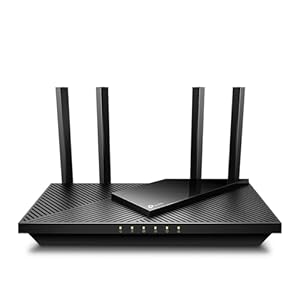
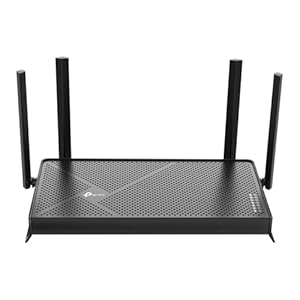
- Place your router or mesh unit centrally, elevated, and away from thick walls or large metal objects; if your office is far from the router, a mesh WiFi system or a wired access point in your office will outperform relying on a weak WiFi signal from another room.
- Separate work traffic from household streaming and gaming where your router supports it — some routers let you prioritize a specific device's traffic (QoS settings), which can keep your video call stable even while someone else in the house is streaming or gaming.
- Use a guest network for visitors and smart-home devices, keeping your work computer on the main network away from less-secured devices, which is both a security practice and a way to keep your work traffic from competing with a dozen smart-home gadgets checking in constantly.
Upgrading or negotiating with your current provider
Before assuming you have to switch companies, it's worth a direct conversation with your current provider:
- Ask about a higher tier, specifically one with better upload speed, not just a higher download number.
- Ask if a symmetrical or business-class residential option exists in your area — some providers offer higher-upload residential tiers or lightweight business-class plans for home offices that aren't advertised prominently. Our business internet guide covers what a true business-grade plan includes if a residential upgrade isn't enough.
- Ask about current promotional pricing for existing customers — providers sometimes have offers for current subscribers that aren't listed publicly, and the only way to know is to ask directly rather than assume none exist.
Switching providers entirely makes more sense when the technology itself is the limitation (for example, you're on cable and need symmetrical upload that only fiber in your area provides) or when your current provider has a documented pattern of outages in your area that an upgrade in place won't fix. Upgrading in place makes more sense when your current technology can support a higher tier and the issue is capacity, not the underlying technology.
Home-office internet and taxes: general information, not tax advice
If you work from home, you may have heard that some or all of your internet bill can be deducted. Whether that applies to you depends on factors like whether you're a W-2 employee or self-employed, whether you have a dedicated home office space, and current federal and state tax rules — all of which change and all of which are outside the scope of a consumer internet guide.
This is general information, not tax advice, and this site is not a substitute for a licensed tax professional. If you want to know whether your internet costs are deductible, bring these specific questions to a CPA or tax preparer: whether your employment status (employee vs. self-employed) qualifies you for a home-office deduction at all, what percentage of a shared home internet bill is defensible as business use in your situation, and what documentation you should keep throughout the year to support the claim. Don't rely on a percentage or dollar figure from a blog post — deduction rules and their application to your situation change, and getting it wrong has real consequences.
FAQ
Does my ISP throttle VPN traffic? Some providers have throttled traffic based on protocol or destination in ways that can affect VPN performance, though practices vary by provider and have shifted over time with regulatory changes. If your VPN performance is inconsistent at the same time every day, it's worth testing your connection speed with and without the VPN active, and asking your provider directly whether any traffic management applies to your plan.
Will a data cap hurt a cloud-heavy job? It can. Jobs involving large file uploads, cloud backups, or frequent video conferencing add up in total data used, and some residential plans have monthly data caps or charge overage fees. Check your specific plan's data allowance directly with your provider rather than assuming a cap won't matter.
What changes if I move mid-lease on an internet contract? Policies vary by provider — some allow you to transfer service to a new address without penalty, others charge an early termination fee if they don't serve your new address, and some let you pause service temporarily. Contract terms and any associated fees are provider- and plan-specific; confirm directly with your provider before you sign a new lease.
Is business internet worth it for a home office? Sometimes. Business-class plans can offer better upload speeds, service-level guarantees, and faster repair response, but typically cost more than residential plans. Whether it's worth it depends on how much an outage or slow upload actually costs you — someone who is off if their connection fails has a different calculation than someone with a flexible schedule.
How do I test my connection before committing to a new plan? Ask the provider whether they offer a satisfaction guarantee or trial period, and if a neighbor or nearby coworking space has the same provider, ask about their day-to-day experience with video calls and uploads specifically, not just their download speed.
How many people can realistically work from home on one connection? It depends more on upload capacity and router quality than on the advertised download speed. If more than one person in the household regularly needs to be on video calls at the same time, treat that as a real requirement when choosing a plan tier, not an edge case.
What's the single highest-impact change if I can only do one thing? For most remote workers with an unreliable-feeling connection, running a wired Ethernet connection to the work computer often resolves video-call and VPN issues that a plan upgrade would not, because it removes WiFi variability entirely.
Bottom line
Most work-from-home internet problems trace back to upload speed, reliability, or home WiFi placement — not the download number on the plan you're already paying for. Diagnose with a wired speed test before you shop for a new provider, prioritize upload and consistency over top-line speed when you do compare plans, and match your backup option to how much a dropped call actually costs you in your specific job. If you only fix one thing, wiring your work machine directly into the router resolves more video-call and VPN issues than most plan upgrades do.
Check availability at your address if diagnosing your current setup points to the provider or technology, not your home network, as the actual problem.
Methodology and how this guide was put together
This guide is based on how internet technologies (fiber, cable, fixed wireless, 5G home internet) generally behave for upload-heavy, latency-sensitive use like video conferencing and VPN connections, combined with publicly available information about provider technology types and coverage patterns. It does not include paid placement, and no provider is presented as "best" without a stated basis for that comparison. Because availability, plan tiers, and pricing change by address and over time, this guide intentionally avoids specific speed, price, and coverage figures in favor of pointing you to where to verify current numbers for your own address.