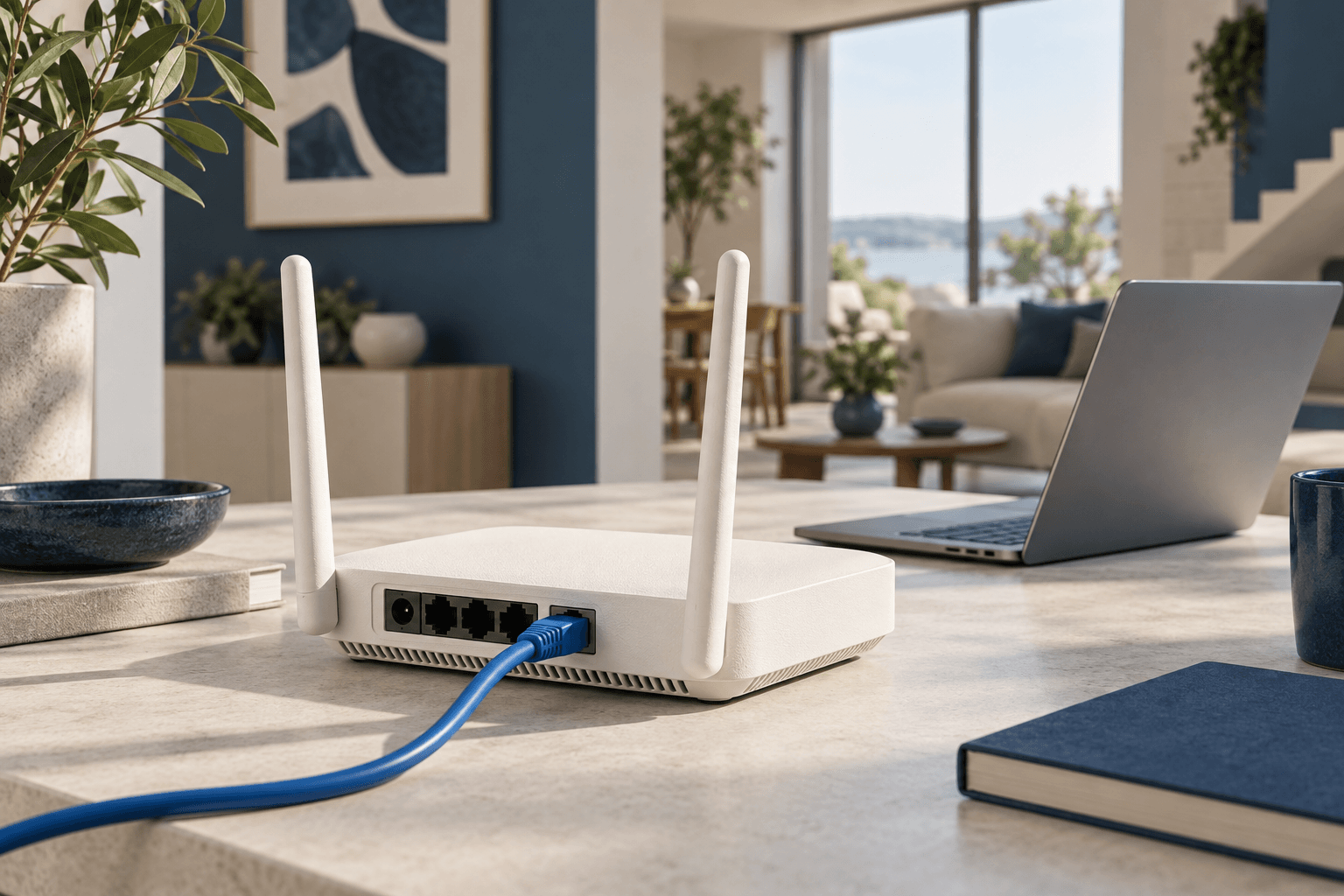
Quick Answer: To set up your WiFi router, connect it to your modem via Ethernet, power it on, connect to the default WiFi network (credentials are on the router label), open 192.168.1.1 in a browser, and change the default WiFi name and password. The entire process takes about 10 minutes.
Sources
This content references data from FCC Broadband Map, U.S. Census Bureau. Pricing and availability are subject to change.
Market Context
The broadband market concentration in the United States varies based on population density and infrastructure investment. According to FCC broadband deployment data, median household income and population density are key factors in service availability and pricing. The BEAD (Broadband Equity, Access, and Deployment) program may expand options in underserved areas of the United States.
Find the best deal. Compare internet providers available at your address to view current plans and pricing.
Before You Start: What You Need
Setting up a WiFi router is straightforward and typically takes less than 10 minutes if you have everything ready. Gather these items:
- Your new router and its power adapter
- An Ethernet cable (usually included in the box)
- Your modem (if separate from the router — see our modem vs. router guide)
- Your ISP account information, including any PPPoE credentials if your provider requires them
- A phone, tablet, or laptop to access the setup interface
Most cable and fiber connections do not need manual ISP credentials since the modem handles authentication. DSL connections often require a PPPoE username and password from your provider.
Step-by-Step Router Setup
- Choose the right location. Place your router in a central, elevated location like a shelf or the top of a bookcase. Avoid closets, basements, and areas near microwaves or baby monitors. The goal is clear line-of-sight to the rooms where you use WiFi most. According to WiFi signal testing by Ookla, elevating a router by just 5 feet can improve coverage by up to 25%.
- Connect the modem to the router. Use an Ethernet cable to connect your modem's LAN port to the router's WAN (or Internet) port. This port is usually a different color (often blue or yellow) from the other Ethernet ports on the router.
- Power on the router. Plug in the power adapter and turn on the router. Wait 1–2 minutes for it to fully boot. Most routers have LED indicators that turn solid green or white when ready.
- Connect to the default WiFi network. Look at the sticker on the bottom or back of your router for the default network name (SSID) and password. Connect your phone or laptop to this network.
- Open the router admin panel. Open a web browser and type the router's IP address, typically 192.168.1.1 or 192.168.0.1. The default login credentials are on the same sticker as the WiFi password. Some newer routers use a mobile app instead (see brand-specific instructions below).
- Change the default WiFi name and password. Navigate to the wireless settings section and set a unique network name (SSID) and a strong password with at least 12 characters. Use WPA3 encryption if your router supports it; otherwise use WPA2.
- Update the router firmware. Check the administration or system section for firmware updates. Manufacturers regularly release patches that improve performance and fix security vulnerabilities.
- Change the admin password. The default admin login (admin/admin or admin/password) is a major security risk. Set a unique admin password that differs from your WiFi password.
Brand-Specific Setup Instructions
Each major router manufacturer has a slightly different setup process. Here are the specifics for the most popular brands in 2026:
TP-Link (Archer, Deco)
- App: Tether app (iOS/Android)
- Web admin: 192.168.0.1 or tplinkwifi.net
- Default credentials: admin/admin
- Setup time: ~5 minutes via app
Netgear (Nighthawk, Orbi)
- App: Nighthawk app or Orbi app
- Web admin: 192.168.1.1 or routerlogin.net
- Default credentials: admin/password
- Setup time: ~7 minutes via app
ASUS (RT, ZenWiFi)
- App: ASUS Router app
- Web admin: 192.168.1.1 or router.asus.com
- Default credentials: admin/admin
- Setup time: ~8 minutes; ASUS setup wizard is thorough
Eero (Amazon)
- App: eero app (required — no web admin interface)
- Setup time: ~5 minutes; app-guided process is the simplest of all brands
ISP-Provided Router/Gateway
- Xfinity, AT&T, Spectrum, and other ISPs often provide a combined modem-router (gateway). Setup instructions vary by provider.
- Xfinity: Use the Xfinity app or visit 10.0.0.1
- AT&T: Use the Smart Home Manager app or visit 192.168.1.254
- Spectrum: Activation is automatic after connecting the hardware
Mesh WiFi vs. Single Router: Which Do You Need?
If your home is larger than 1,500 square feet, has multiple floors, or has thick walls (brick, concrete), a single router may leave dead zones. Here is how mesh systems compare:
| Feature | Single Router | Mesh WiFi System |
|---|---|---|
| Coverage | 800–2,000 sq ft typical | 2,500–6,000+ sq ft |
| Dead zones | Common in large/multi-story homes | Eliminated with satellite nodes |
| Cost | $50–$200 | $200–$600 for 2–3 node system |
| Setup complexity | Low | Low (app-guided) |
| Roaming | Manual band switching | Seamless roaming between nodes |
| Best for | Apartments, small homes | Large homes, multi-floor setups |
For detailed advice on extending your existing setup, see our guide to extending WiFi range.
Essential Router Settings to Configure
After the basic setup, optimize these settings for the best performance and security:
- Enable WPA3 (or WPA2 if WPA3 is unavailable). Never use WEP or open networks—they are trivially hackable.
- Enable automatic firmware updates. Most modern routers support this. Check under Administration > System settings.
- Set up a guest network. Keep visitors on a separate network so they cannot access your personal devices or shared files.
- Enable QoS (Quality of Service). Prioritize video calls and gaming traffic over background downloads. This prevents a large file download from ruining your Zoom call.
- Disable WPS. WiFi Protected Setup is a known security vulnerability. Use your WiFi password instead.
- Choose the right WiFi band: Use 5 GHz for speed-sensitive devices near the router; use 2.4 GHz for devices that need range or are further away. Wi-Fi 6E routers add a 6 GHz band with even less interference. Learn more about WiFi vs. Ethernet connections.
Frequently Asked Questions
Do I need a separate modem and router?
You can use a combined gateway (modem + router in one device), but separate devices give you more flexibility. With a separate router, you can upgrade your WiFi without changing modems, and you often get better performance. See our modem vs. router comparison for full details.
How often should I restart my router?
Restarting your router once a month clears temporary memory and can resolve minor connectivity issues. If you experience frequent dropouts, consider setting an automatic weekly reboot schedule (available on most modern routers).
Can I use my old router as a WiFi extender?
Yes. Most routers can be configured as a wireless access point or bridge. Connect the old router to your main router via Ethernet, disable DHCP on the old router, and set it to the same WiFi credentials. This is a cost-effective alternative to buying a dedicated WiFi extender.
What is the best router for a 500 Mbps plan?
For a 500 Mbps plan, choose a Wi-Fi 6 router rated for at least 1,200 Mbps (AX1800 class or higher). Popular options in this range include the TP-Link Archer AX55, Netgear RAX43, and ASUS RT-AX58U, all priced between $80–$130. For plans faster than 500 Mbps, consider Wi-Fi 6E models.
Why does my new router show slower speeds than my old one?
Common causes include: the router is not configured for your ISP's connection type (check WAN settings), QoS is throttling your connection, or the router needs a firmware update. Verify by running a speed test via Ethernet cable connected directly to the new router.
Router Placement: Where You Put It Matters More Than You Think
Even the most expensive router won't perform well if it's buried in a closet or shoved behind a TV stand. Wi-Fi signals weaken as they pass through walls, floors, and furniture, so placement is one of the most impactful things you can control.
Place your router in a central location on the main floor of your home. Elevate it on a shelf or mount it on a wall — signals radiate outward and downward, so higher placement tends to improve coverage on lower floors. Keep it away from microwaves, baby monitors, and cordless phones, which operate on similar frequencies and cause interference.
If your home has a long or irregular layout, consider whether a mesh Wi-Fi system would serve you better than a single router. Mesh systems use multiple access points to blanket your home in consistent signal, and they're especially useful in multi-story homes or spaces larger than 2,000 square feet.
The 30-Second Signal Test
After setting up your router, walk to the farthest room in your home and run a speed test on your phone. If you're getting less than 30% of your plan speed, you've got a coverage problem. Move the router closer to the center of the house, or look into adding a Wi-Fi extender or upgrading to mesh.
Securing Your Home Network: A Step-by-Step Checklist
An unsecured router is an open door for anyone within range. Here's what to lock down immediately after setup:
- Change the default admin password. Every router ships with a factory login (often "admin/admin" or "admin/password"). Change this first — attackers scan for default credentials constantly.
- Set WPA3 encryption. If your router supports WPA3, enable it. If not, WPA2-AES is the next best option. Never use WEP or leave your network open.
- Create a guest network. Give visitors access to the internet without exposing your main network. Most modern routers let you set up a guest network in the admin panel with a separate password.
- Disable WPS (Wi-Fi Protected Setup). While convenient, WPS has known security vulnerabilities. Turn it off and connect devices using your password instead.
- Enable automatic firmware updates. Router manufacturers regularly patch security holes. If your router supports auto-updates, turn them on. Otherwise, check for updates monthly.
- Turn off remote management. Unless you specifically need to access your router from outside your home, disable remote administration to reduce your attack surface.
These steps take about 10 minutes and dramatically reduce the risk of unauthorized access. For a deeper dive on protecting your home network, see our guide to bandwidth throttling, which covers how ISPs and attackers can affect your connection.
Troubleshooting Common Router Setup Issues
Even with perfect hardware, router setup doesn't always go smoothly. Here are the most common problems and how to fix them fast.
No Internet After Setup
If the router powers on but won't connect to the internet, start with the basics. Make sure the Ethernet cable from your modem is plugged into the router's WAN (or Internet) port — not one of the LAN ports. Power cycle both your modem and router by unplugging them for 30 seconds, then plugging the modem in first. Wait for all its lights to stabilize before powering up the router.
Some ISPs require you to register your router's MAC address before it can access the internet. Call your provider or check their app to confirm your new router is authorized on their network.
Slow Speeds Despite a Fast Plan
If your speed test shows significantly less than what you're paying for, check whether you're testing over Wi-Fi or a wired connection. Wi-Fi will almost always be slower than a direct Ethernet connection, especially on older devices that don't support Wi-Fi 6.
Switch your router to the 5 GHz band for devices that are close by — it offers faster speeds but shorter range. The 2.4 GHz band reaches farther but delivers slower throughput. Most dual-band routers let you create separate network names for each band, so you can choose manually.
Devices Keep Disconnecting
Frequent disconnections often point to channel congestion, particularly in apartments or dense neighborhoods where dozens of networks compete for the same channels. Log into your router's admin panel and switch from "Auto" channel selection to a specific channel. For 2.4 GHz, channels 1, 6, and 11 are the only non-overlapping options. For 5 GHz, any channel in the DFS range (52-144) tends to be less crowded.
When to Upgrade Your Router
Routers aren't designed to last forever. If yours is more than 4-5 years old, it likely doesn't support Wi-Fi 6, which means you're leaving performance on the table — especially if you have a high-speed internet plan. Signs it's time for an upgrade include:
- You've upgraded your internet plan but aren't seeing faster speeds
- You experience dead zones that didn't exist before
- Your router no longer receives firmware updates from the manufacturer
- You've added smart home devices and the network feels sluggish
- Your router doesn't support WPA3 security
For most households in 2026, a Wi-Fi 6 or Wi-Fi 6E router in the $80-$150 range handles everything from 4K streaming to video calls without breaking a sweat. If you're on a gigabit plan, look for a router that supports at least 2.5 Gbps on its WAN port — otherwise, the router itself becomes the bottleneck.