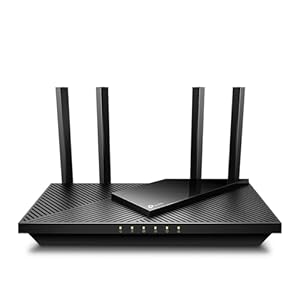
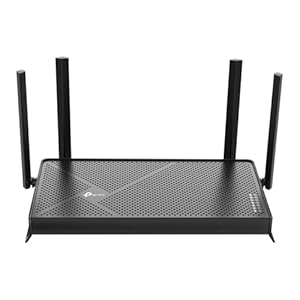
If your Frontier Fiber speeds are slower than expected, start by restarting your ONT and router, then test with a wired Ethernet connection to isolate whether the issue is your Wi-Fi or the fiber connection itself. Most speed issues resolve with these basic steps in under 10 minutes.
Frontier Fiber delivers speeds up to 5 Gbps in select markets, but real-world performance can sometimes fall short. Whether you're seeing buffering during streaming, slow downloads, or laggy video calls, this step-by-step troubleshooting guide will help you diagnose and fix the problem. Frontier support at if you need additional help after trying these steps.
Step 1: Run a Speed Test to Establish a Baseline
Before making changes, document your current speeds so you can measure improvement. Use a reputable speed test service like Speedtest.net or Fast.com. For accurate results:
- Close all other applications and browser tabs
- Disconnect other devices from your network if possible
- Run the test at least 3 times and average the results
- Note both download and upload speeds
Compare your results to your plan's advertised speeds. Frontier Fiber plans typically deliver 100% of advertised download speeds, so a significant gap indicates an issue worth troubleshooting.
Step 2: Restart Your ONT and Router
The Optical Network Terminal (ONT) is the box where Frontier's fiber line enters your home. Restarting both the ONT and your router clears cached data and re-establishes the connection. Follow this sequence:
- Unplug the power cable from your router — wait 30 seconds
- Unplug the power cable from the ONT — wait 60 seconds (the ONT needs more time to fully reset)
- Plug the ONT back in first — wait for all status lights to turn solid green (about 2-3 minutes)
- Plug the router back in — wait for Wi-Fi to broadcast (about 1-2 minutes)
- Run another speed test to see if performance improved
This power cycle resolves roughly 60-70% of speed issues. If your speeds return to normal, the problem was likely a temporary connection hiccup.
Step 3: Test With a Wired Ethernet Connection
Wi-Fi adds overhead and introduces variables like interference and distance. Connect your computer directly to the router using an Ethernet cable and run a speed test. This tells you whether the issue is with your fiber connection or your wireless network.
- If wired speeds are normal: The issue is your Wi-Fi setup — skip to Step 5
- If wired speeds are still slow: The issue is with the connection itself — continue to Step 4
Use a Cat5e or Cat6 Ethernet cable for accurate results. Older Cat5 cables can bottleneck gigabit connections.
Step 4: Check for Network Outages
Sometimes slow speeds indicate a wider network issue in your area. Check for outages through these channels:
- Visit the Frontier outage troubleshooting page for step-by-step guidance
- Log into your Frontier account at frontier.com and check the outage map
- Use the My Frontier app to view service status
- Frontier's automated system at for real-time outage information
If there's a known outage, Frontier is already working on it. Outages typically resolve within a few hours, though major infrastructure issues may take longer.
Step 5: Optimize Your Wi-Fi Setup
If your wired speeds are fine but Wi-Fi is slow, these optimizations can help significantly:
Router Placement
- Place the router in a central location, elevated off the floor
- Keep it away from microwaves, baby monitors, and Bluetooth devices
- Avoid placing it inside cabinets or behind furniture
Channel and Band Selection
- Use the 5 GHz band for devices within 30 feet of the router (faster speeds, shorter range)
- Use the 2.4 GHz band for devices farther away (slower but better range)
- If your router supports Wi-Fi 6 or 6E, ensure your devices are compatible to take advantage of higher speeds
For larger homes, consider adding a mesh Wi-Fi system. Frontier's eero mesh system is designed to work with their fiber service. Learn more about resolving Wi-Fi dropping issues with our dedicated guide.
Step 6: Check for Device-Level Issues
Sometimes the problem is with a specific device rather than your network. Check these common culprits:
- Background updates: Windows, macOS, and gaming consoles may download large updates
- Cloud syncing: Services like Dropbox, Google Drive, or iCloud can consume bandwidth
- Malware or adware: Run a security scan on devices with unexplained slow speeds
- Outdated network drivers: Update your device's Wi-Fi adapter drivers
- Too many connected devices: Each device shares your total bandwidth
Step 7: Contact Frontier Support
If you've tried all the steps above and speeds are still below your plan's advertised rates, contact Frontier for advanced troubleshooting. They can:
- Run diagnostics on your ONT and line remotely
- Check for signal degradation on the fiber line
- Schedule a technician visit if needed (at no charge for line issues)
- Verify your account is provisioned for the correct speed tier
Frontier Fiber support at or chat online through the My Frontier app.
Check Frontier Fiber AvailabilityWhen to Consider Upgrading Your Plan
If your speeds are technically meeting your plan's specifications but still feel slow, you may need a higher tier. As of early 2026, Frontier Fiber offers plans ranging from 500 Mbps to 5 Gbps. Consider upgrading if:
- You have 10+ devices connected simultaneously
- Multiple family members stream 4K content at the same time
- You work from home with large file transfers or video conferencing
- You game online while others use bandwidth-heavy applications
Frequently Asked Questions
Why is my Frontier Fiber so slow all of a sudden?
Sudden speed drops are usually caused by a temporary network issue, ONT firmware update, or local outage. Restart your ONT and router first, then check for outages in your area. If the problem persists, contact Frontier support.
What speeds should I expect on Frontier Fiber?
Frontier Fiber typically delivers 100% of advertised download speeds over a wired connection. Over Wi-Fi, expect 50-80% of your plan speed depending on distance from the router, interference, and your device's Wi-Fi capabilities.
Does Frontier throttle internet speeds?
Frontier Fiber plans have no data caps and no throttling. If you're experiencing consistently slow speeds, the issue is more likely related to your home network setup, equipment, or a line issue that Frontier can diagnose.
How often should I restart my Frontier router?
A monthly restart is a good practice to clear cached data and refresh connections. If you're experiencing speed issues, restart both the ONT and router as described in Step 2 above.
Can my old router cause slow Frontier Fiber speeds?
Yes. Older routers may not support Wi-Fi 5 or Wi-Fi 6, which limits wireless speeds regardless of your fiber plan. If your router is more than 3-4 years old, consider upgrading to a Wi-Fi 6 or 6E model for best results.
Is Frontier Fiber faster than cable internet?
Fiber internet is generally more consistent than cable because it doesn't suffer from congestion during peak hours. Frontier Fiber also offers symmetrical upload and download speeds, which cable providers typically cannot match.
Related guides: Frontier Fiber Overview | Fix Wi-Fi Dropping | Outage Troubleshooting | Installation Tips
Making the Most of Your Internet Connection
Regardless of your provider or plan, several practices help maximize your internet experience. Position your router centrally in your home, elevated and away from walls and large appliances. Update your router firmware regularly, as manufacturers release performance and security improvements frequently.
For the best speeds, connect high-bandwidth devices directly to your router using ethernet cables. Wi-Fi is convenient but introduces latency and speed loss, particularly through walls and over longer distances. Modern mesh Wi-Fi systems can improve wireless coverage for larger homes.
Monitor your monthly data usage if your plan includes a data cap. Most providers offer usage tracking through their app or account portal. Setting up usage alerts at 75% and 90% thresholds prevents surprise overage charges or throttling.
Slow Speeds Value Analysis
Evaluating Slow Speeds's value requires looking beyond the monthly rate to understand the total cost of service. Equipment fees, installation charges, data overage costs, and price increases after promotional periods all factor into the real cost.
Monthly cost components: Your bill includes the plan rate plus any equipment rental fees ($10-15/month for modem and router). Some plans include equipment, while others charge separately. Taxes and regulatory fees typically add another $5-10/month depending on your location.
Promotional vs. regular pricing: Most Slow Speeds promotional rates last 12-24 months before reverting to regular pricing. The increase can be significant — sometimes $20-40/month more. Factor the regular rate into your decision, especially if you plan to stay with the service long-term.
Hidden costs to watch for: Early termination fees on contract plans, professional installation charges, and data overage fees can add unexpected costs. Ask about all potential charges before committing to a plan.
How Slow Speeds Compares
Comparing Slow Speeds against alternatives at your address provides the context needed for an informed decision. Key comparison factors include price per Mbps, contract requirements, data limits, and customer satisfaction ratings.
In competitive markets, Slow Speeds generally prices plans close to regional averages. The best value often comes from matching the right plan tier to your actual usage needs rather than defaulting to the cheapest or fastest option available.
Technology type significantly affects the comparison. If Slow Speeds offers fiber at your address while competitors only provide cable, the reliability and symmetric speed advantages may justify a modest price premium. Conversely, if multiple fiber options are available, price and plan features become more important differentiators.
Disclosure: Some links on this page are affiliate links, meaning we may earn a commission if you sign up through them at no additional cost to you. Our recommendations are based on independent research and testing. We are committed to providing honest, unbiased information to help you make informed decisions about your internet service. Pricing and availability are subject to change.