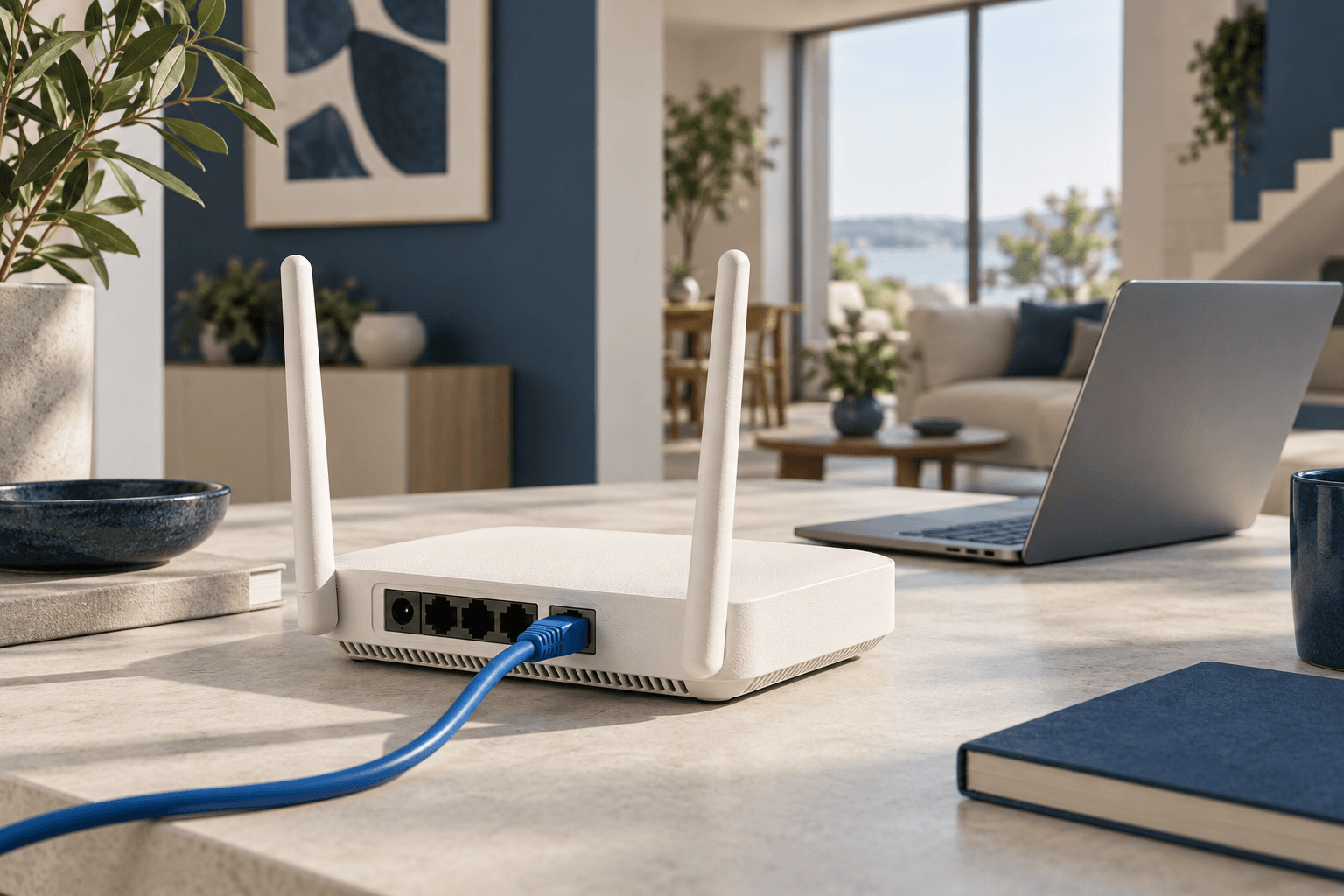
Spectrum makes installation easy with two options: a self-install kit you set up yourself in under 30 minutes, or a professional installation where a technician handles everything. This guide covers both paths step by step, helps you decide which one you need, and provides troubleshooting tips for common issues.
InternetProviders.ai earns commissions from partner providers. Recommendations are editorially independent.
Quick Comparison
| Feature | Self-Install | Professional Install |
|---|---|---|
| Cost | Free | Free with Premier/Gig; may charge for Advantage |
| Time | 15–30 minutes | 1–2 hours (plus scheduling) |
| When it works | Existing coax wiring at your address | Any address, including new construction |
| Kit delivery | 3–5 business days by mail | N/A — technician brings equipment |
| Availability | Most addresses with prior cable service | All Spectrum service areas |
Which Installation Method Do You Need?
Choose Self-Install If:
- Your home previously had cable internet or cable TV service (from Spectrum, Time Warner, Bright House, or Charter)
- You can see coaxial cable outlets on your walls
- You're comfortable connecting cables and following basic setup instructions
- You want service as quickly as possible (kit arrives in 3–5 days, no scheduling needed)
Choose Professional Install If:
- Your home is new construction with no existing cable infrastructure
- You've never had cable service at your current address
- You can't locate any coaxial outlets in your home
- You want the technician to verify signal quality and optimize your setup
- You need cable run to a specific room that isn't currently wired
Spectrum Self-Install: Step-by-Step Guide
What's in the Self-Install Kit
Spectrum's self-install kit includes everything you need:
- DOCSIS 3.1 modem — Spectrum-provided, no monthly fee
- Coaxial cable — Connects the modem to your wall outlet
- Ethernet cable — Connects the modem to your router or computer
- Power adapter — For the modem
- Quick start guide — Illustrated step-by-step instructions
- Advanced WiFi router (if you subscribed) — Spectrum's WiFi 7 managed router
Step-by-Step Self-Installation Process
Step 1: Locate Your Coaxial Outlet
Find a coaxial cable outlet in the room where you want your modem. It looks like a small, round, threaded metal connector on your wall — similar to a cable TV connection. If your home has multiple coax outlets, choose the one closest to where you'll use the internet most.
Step 2: Connect the Coaxial Cable
Screw one end of the coaxial cable (included in the kit) into the wall outlet and the other end into the "Cable In" port on the back of your Spectrum modem. Hand-tighten both connections — don't use pliers, but make sure they're snug.
Step 3: Power Up the Modem
Plug the power adapter into the modem and into a wall outlet or surge protector. The modem will begin its boot-up sequence. You'll see several indicator lights start blinking.
Important: Wait for the "Online" light to become solid (not blinking). This typically takes 5–15 minutes as the modem downloads its configuration from Spectrum's network. Don't unplug or restart the modem during this process.
Step 4: Connect Your Router (If Using Advanced WiFi)
If you have Spectrum's Advanced WiFi router:
- Connect the Ethernet cable from the modem's "Ethernet" port to the router's "Internet" or "WAN" port
- Plug in the router's power adapter
- Wait 2–3 minutes for the router to boot up
- Look for the WiFi network name and password on the sticker on the bottom of the router
If you're using your own third-party router, the process is the same — just connect it to the modem via Ethernet. For router recommendations, see our Spectrum equipment guide.
Step 5: Activate Your Service
Connect a device (laptop, phone, or tablet) to your WiFi network or directly to the router via Ethernet. Open a web browser and navigate to any website. You should be automatically redirected to Spectrum's activation page. Follow the on-screen prompts to:
- Enter your account number or the last four digits of your SSN
- Confirm your identity
- Accept the terms of service
- Set up your Spectrum account (if you haven't already)
If you're not redirected automatically, go to spectrum.net/selfinstall directly.
Step 6: Test Your Connection
Once activation completes, verify your internet is working:
- Browse several websites to confirm connectivity
- Run a speed test at speedtest.net to verify you're getting speeds close to your plan tier
- Test WiFi in different rooms to check coverage
Professional Installation: What to Expect
Scheduling
When you sign up for Spectrum and select professional installation, you'll choose an appointment window. Spectrum typically offers:
- Appointment windows: 2-hour blocks during business hours and Saturdays
- Earliest availability: Usually 3–7 days from sign-up
- Duration: 1–2 hours on average
What the Technician Does
- Inspects existing wiring: Checks coaxial cables for signal quality and damage
- Runs new cable if needed: If there's no coax in your desired location, the technician can run new cable from the exterior connection point
- Installs a signal amplifier: If the signal from the street is weak, the tech will add a signal booster
- Sets up the modem: Connects and configures the modem, waits for it to come online
- Sets up the router: If you have Advanced WiFi, the technician configures it and verifies WiFi coverage
- Tests speed and signal: Runs diagnostics to confirm you're getting proper speeds
- Walks you through the setup: Shows you the WiFi name and password, My Spectrum app, etc.
Professional Install Costs
| Plan | Professional Install Cost |
|---|---|
| Internet 1 Gig (1 Gbps) | Free |
| Internet 500 (500 Mbps) | Free |
| Internet 100 (100 Mbps) | May vary — ask when ordering |
Troubleshooting Common Self-Install Issues
Modem Won't Come Online (Lights Keep Blinking)
- Wait longer: The initial boot can take up to 20 minutes. Don't power-cycle prematurely.
- Check the coax connection: Make sure both ends are finger-tight and fully screwed in.
- Try a different coax outlet: If your home has multiple outlets, try another one — some may not be active.
- Check the cable splitter: If there's a splitter between the wall and your modem, try connecting directly to the wall without it.
- Call Spectrum: At — they can send a signal refresh to your modem remotely, which often fixes activation issues.
Slow Speeds After Installation
- Test with Ethernet: Connect directly to the modem with an Ethernet cable. If speeds are correct over Ethernet but slow over WiFi, the issue is your router or WiFi interference, not Spectrum's service.
- Restart the modem: Unplug for 30 seconds, then plug back in and wait for full boot.
- Check for interference: Move the router away from microwaves, baby monitors, and thick walls.
- Update your router firmware: If using your own router, check the manufacturer's site for firmware updates.
Activation Page Doesn't Load
- Clear your browser cache and try again
- Try a different browser — some ad blockers interfere with the activation redirect
- Go directly to spectrum.net/selfinstall
- Disable VPN if you have one active
- Try a different device — connect via Ethernet if WiFi isn't working yet
No Coaxial Outlet in Your Desired Room
If the only coax outlet is in a different room than where you want your equipment:
- Use a longer coaxial cable to reach from the outlet to your modem location
- Use MoCA adapters to extend your wired connection through existing coax in other rooms
- Position your router centrally and rely on WiFi coverage
- Schedule a professional install to have a new coax outlet installed where you want it
Tips for the Best Setup
Modem Placement
- Keep the modem in a well-ventilated area — it generates heat
- Don't stack other electronics on top of it
- Keep it away from direct sunlight
Router Placement (for Best WiFi)
- Central location: Place the router as close to the center of your home as possible
- Elevated position: WiFi signals travel outward and downward — higher is better
- Open space: Avoid closets, cabinets, and areas behind large furniture
- Away from interference: Keep 3+ feet from microwaves, cordless phones, and baby monitors
- Away from metal: Metal objects (filing cabinets, refrigerators, mirrors) block WiFi signals
After Installation: Next Steps
- Download the My Spectrum app — Manage your account, pay bills, and run speed tests
- Change your WiFi password — The default password on the sticker is not secure. Set a unique password.
- Set up Spectrum Security Suite — Free antivirus software included with all plans
- Connect all your devices — Phones, tablets, smart home devices, gaming consoles
- Run a speed test — Verify you're getting the speeds you're paying for. If not, call Spectrum.
- Consider Spectrum Mobile — Don't forget to activate your free mobile line promotion
Spectrum Equipment: What You Need to Know
The Spectrum Modem
Spectrum provides a DOCSIS 3.1 modem at no monthly charge to all internet subscribers. This is mandatory — unlike many ISPs, Spectrum does not allow customers to use their own modem. The provided modem supports all Spectrum plan tiers including the Gig plan (up to 1 Gbps download). The modem connects to Spectrum's hybrid fiber-coaxial (HFC) network through the coaxial cable in your home and provides a single Ethernet output to connect to your router.
The modem Spectrum provides is typically a Hitron EN2251 or similar DOCSIS 3.1 device. It supports 32x8 channel bonding on DOCSIS 3.0 and 2x2 OFDM channels on DOCSIS 3.1, providing theoretical maximum throughput well above 1 Gbps. The device draws approximately 12 watts of power and operates silently with no fan. Indicator lights on the front show power status, downstream/upstream connectivity, and internet connection status — these lights become important references during troubleshooting.
Spectrum Advanced WiFi Router
Spectrum's optional Advanced WiFi service costs $5/mo and includes a managed WiFi 6 (or WiFi 7 in select markets) router. The router is pre-configured with your account settings and provides whole-home WiFi management through the My Spectrum app. Features include device prioritization, parental controls, guest network creation, and automatic firmware updates. The Advanced WiFi router supports WiFi 6 (802.11ax) with speeds up to 3 Gbps wirelessly and includes four Gigabit Ethernet ports for wired devices.
For larger homes where a single router cannot provide adequate coverage, Spectrum offers WiFi pods (extenders) as part of the Advanced WiFi service. These mesh-style extenders plug into any outlet and automatically connect to the main router to extend coverage. Each pod costs an additional $5/mo. A typical 2,500+ square foot home might benefit from 1-2 pods, bringing the total WiFi equipment cost to $10-15/mo.
Using Your Own Router
Spectrum allows customers to use their own router instead of paying for Advanced WiFi. Any router with a WAN Ethernet port is compatible — simply connect it to the modem's Ethernet output. Popular choices among Spectrum customers include the TP-Link Archer AX73 ($120, WiFi 6), ASUS RT-AX86U ($200, WiFi 6 with gaming features), and Eero Pro 6E mesh system ($400 for a 3-pack, excellent for large homes). Using your own router eliminates the $5-15/mo equipment fee, and a quality $150 router typically outperforms Spectrum's included equipment. The breakeven point versus renting is 30 months for a $150 router — after that, you save $5+/mo indefinitely.
Understanding Spectrum's Network: HFC Technology Explained
Spectrum delivers internet service over a hybrid fiber-coaxial (HFC) network. Fiber optic cables run from Spectrum's headend facilities to neighborhood nodes, typically serving 100-500 homes per node. From the node, coaxial cable — the same type used for cable TV — carries the signal to individual homes. The DOCSIS 3.1 protocol runs over this coaxial cable, supporting download speeds up to 10 Gbps and upload speeds up to 1 Gbps in theory, though Spectrum's current residential plans cap at 1 Gbps download.
This architecture explains why coaxial cable is essential for Spectrum service — it is the "last mile" connection between the neighborhood fiber node and your home. The quality of this coaxial connection directly affects your internet performance. Old, damaged, or poorly terminated coaxial cables can cause signal loss, intermittent connectivity, and reduced speeds. During professional installation, the technician tests signal strength at the modem to ensure it falls within Spectrum's specified range (typically -7 to +7 dBmV for downstream and 37-55 dBmV for upstream).
Spectrum is gradually upgrading its network to support DOCSIS 4.0, which will enable multi-gigabit speeds over existing coaxial infrastructure. Early deployments of DOCSIS 4.0 are expected in select markets by late 2026, with broader rollout through 2027-2028. This upgrade will not require new wiring — existing coaxial installations will support the faster speeds with only a modem upgrade.
Spectrum Self-Install vs Competitors' Installation
Spectrum's self-install process compares favorably to other major ISPs. AT&T Fiber requires professional installation for all new customers due to the fiber optic technology, with appointments typically taking 2-4 hours. Xfinity offers self-install kits similar to Spectrum's, though Xfinity customers often need to return a previous provider's modem separately. T-Mobile's 5G Home Internet has the simplest setup — just plug in the gateway and connect to WiFi — but does not offer the same consistent speeds as a wired connection.
Verizon Fios requires professional installation for fiber but offers a streamlined process that typically takes 1-2 hours. Google Fiber also requires professional installation. Among cable providers specifically, Spectrum and Xfinity offer the most comparable self-install experiences, with both providing free kits that include all necessary equipment and cables.
One advantage Spectrum has over many competitors is the absence of a separate modem fee. Xfinity charges $14/mo for its xFi Gateway, and while customers can use their own modem, Spectrum eliminates this consideration entirely by including the modem at no charge for all customers. This simplifies both the installation process and the monthly bill.
Multi-Unit and Apartment Installation Tips
Installing Spectrum in an apartment or multi-unit building presents unique considerations. Most apartment buildings pre-wired for cable have coaxial outlets in each unit connected to a central distribution point in the building. Self-install typically works seamlessly in these environments — the coaxial signal is already active at the wall outlet, and connecting the modem is identical to a single-family home installation.
In newer apartment buildings, the landlord or property management company may have a bulk agreement with Spectrum or another provider. Check with your building management before ordering to understand any existing agreements or restrictions. Some buildings have exclusive wiring agreements that limit which providers can serve residents.
If you are moving into a newly constructed apartment building, the coaxial infrastructure may be in place but not yet activated. In this case, professional installation is required even though the physical wiring exists — the technician needs to activate the connection at the building's distribution point and verify signal quality to your unit. Contact Spectrum before your move-in date to schedule the activation so it is ready when you arrive.
For condominiums and townhomes, the installation process is generally identical to single-family homes. However, in some HOA-governed communities, there may be restrictions on where exterior cable can be run or where the technician can drill. Confirm any community rules with your HOA before scheduling professional installation to avoid delays or conflicts.
Frequently Asked Questions
How long does Spectrum self-install take?
The physical setup takes 15–30 minutes. The modem's initial boot and activation process adds another 5–15 minutes. Total time: about 30–45 minutes.
Can I self-install if I've never had cable service?
Usually not. Self-install requires existing, active coaxial wiring at your address. If your home has never had cable service, you'll need a professional installation to run the initial cable from the street to your home.
What if self-install doesn't work?
Call Spectrum at . They can troubleshoot remotely and, if needed, schedule a professional install at no additional cost to fix the issue.
Do I need to be home for professional installation?
Yes. Someone 18 or older must be present during the entire installation appointment.
Can I install Spectrum in an apartment?
Yes. Most apartments have existing coaxial wiring, making self-install straightforward. If your apartment building is pre-wired for Spectrum, the coax outlet in your unit should be active.
Does Spectrum install ethernet jacks?
Spectrum technicians focus on coaxial cable and modem/router setup. They typically do not install Ethernet jacks in walls. For Ethernet wiring, you'd need to hire a separate electrician or low-voltage contractor.
How soon can I get Spectrum installed?
Self-install kits arrive in 3–5 business days. Professional installation appointments are typically available within 3–7 days of ordering. Exact timelines vary by market.
Can I set up Spectrum without a coaxial cable?
No. Spectrum's HFC network requires a coaxial cable connection between the wall outlet and the modem. There is no wireless alternative for the modem connection (though your devices connect to the router wirelessly). If you need internet without cable infrastructure, consider 5G home internet or satellite internet.
What should I do with old equipment from a previous provider?
Return old equipment to your previous provider to avoid being charged for unreturned devices. Spectrum installs its own modem — you cannot use another provider's equipment.
Is Spectrum's free modem good enough, or should I buy my own?
Spectrum's free DOCSIS 3.1 modem is solid and sufficient for all plan tiers. You cannot use your own modem with Spectrum — the modem must be Spectrum-provided. However, you can (and many people do) use your own router instead of paying for Advanced WiFi. See our equipment guide for details.
Returning Equipment and Cancellation
If you cancel Spectrum service, you must return all Spectrum-provided equipment (modem, router, WiFi pods) within 15 days to avoid unreturned equipment charges. Spectrum charges up to $240 for an unreturned modem and $130 for an unreturned router. You can return equipment at any Spectrum retail store, ship it via UPS using the prepaid label Spectrum provides, or schedule a technician pickup. Returning equipment in person at a Spectrum store is the fastest method and provides an immediate receipt confirming the return — keep this receipt as proof in case of billing disputes.
If you are switching to a new provider and keeping Spectrum equipment temporarily during the transition, note that Spectrum bills on a monthly cycle and does not prorate for partial months. To avoid paying for an extra month, time your cancellation to align with the end of your current billing period. Call Spectrum at to confirm your exact billing date and plan the cancellation accordingly.
Summary
Spectrum's self-install process is one of the easiest in the industry — plug in three cables, wait for activation, and you're online. If self-install doesn't work or isn't available at your address, professional installation is free with the Premier and Gig plans. Either way, you'll be up and running the same day.
Ready to get started? or check availability at your address. For help choosing the right plan, see our complete Spectrum Internet review.
Guide by Pablo Mendoza, Lead Analyst at InternetProviders.ai. Last updated March 2026.
Sources & Methodology
This guide is based on data from FCC broadband filings, Ookla speed test measurements, U.S. Census Bureau broadband adoption statistics, and verified provider plan details. Pricing, speeds, and availability are verified against provider broadband nutrition labels and may vary by location. For a detailed explanation of our data collection and scoring process, see our methodology page.
Data Sources
- FCC Broadband Data Collection
- U.S. Census Bureau American Community Survey
- USAC Universal Service Fund
- NTIA Internet Use Survey
- Ookla Speedtest Intelligence
Last verified: March 2026. InternetProviders.ai is an independent resource. We may earn commissions from partner links — this does not affect our editorial recommendations. See our methodology for details.