Online gaming demands consistent download speeds, low latency, minimal jitter, and adequate upload bandwidth. Spectrum’s cable internet delivers well on most of these metrics but has notable limitations for competitive gamers and streamers. This analysis covers what gamers need to know about Spectrum’s performance, which plan to choose, how to optimize your setup, and when fiber might be the better option.
Gaming Performance Summary
| Metric | Spectrum Performance | Gaming Requirement | Rating |
|---|---|---|---|
| Download Speed | 300–1,000 Mbps | 25+ Mbps | Excellent |
| Upload Speed | 10–35 Mbps | 5+ Mbps (50+ for streaming) | Adequate/Poor |
| Latency (Ping) | 18–25 ms | Under 50 ms | Good |
| Jitter | 3–7 ms | Under 15 ms | Good |
| Data Cap | None | Unlimited preferred | Excellent |
| Packet Loss | <0.5% | <1% | Good |
Spectrum is a solid choice for casual to moderately competitive gaming. Download speeds far exceed what any game requires, and latency is within acceptable ranges for most genres. The main limitation is upload speed, which creates problems for gamers who stream their gameplay or who share their connection with other heavy uploaders.
Which Spectrum Plan Is Best for Gaming?
Casual Online Gaming (Fortnite, Call of Duty, Minecraft, Roblox)
The base 300 Mbps plan is more than sufficient for online gaming. Most games use only 3–10 Mbps of bandwidth during active play. The 300 Mbps speed provides ample headroom for simultaneous gaming and streaming by other household members. If your household has 1–2 gamers and no one is streaming gameplay to Twitch, this plan covers you completely.
Competitive Gaming + Frequent Game Downloads
If you frequently download large games (50–150+ GB is common for AAA titles in 2026), the faster speeds cut download times significantly. A 100 GB game downloads in approximately 27 minutes at 500 Mbps versus 45 minutes at 300 Mbps. The 20 Mbps upload also provides more breathing room if other household members are on video calls while you game. This tier is the sweet spot for dedicated gamers.
Streaming Gameplay to Twitch/YouTube/Kick
Game streaming requires stable, sustained upload bandwidth. Streaming at 1080p/60fps to Twitch requires 6–8 Mbps upload, and 4K streaming requires 20+ Mbps. The Gig plan’s 35 Mbps upload is the minimum for reliable streaming, but even this is tight if you also need to game online (which uses 3–10 Mbps upload) and have other household members using the internet simultaneously.
For serious content creators who stream daily, fiber internet with symmetric 1,000 Mbps upload is strongly preferred. See our Spectrum vs. AT&T comparison for details.
Latency Analysis by Game Type
Different game genres have different latency sensitivity. Spectrum’s 18–25 ms average latency is adequate for most genres but puts competitive FPS players at a small disadvantage compared to fiber users (5–12 ms).
| Game Type | Examples | Ideal Latency | Spectrum Rating |
|---|---|---|---|
| Competitive FPS | Valorant, CS2, Overwatch 2 | <20 ms | Borderline; fiber preferred |
| Battle Royale | Fortnite, Apex Legends, Warzone | <40 ms | Good |
| MOBA | League of Legends, Dota 2 | <40 ms | Good |
| Fighting Games | Street Fighter 6, Tekken 8 | <30 ms | Adequate |
| MMO | WoW, FFXIV, ESO | <80 ms | Excellent |
| Racing | Forza, Gran Turismo | <50 ms | Good |
| Turn-Based/Strategy | Civilization, XCOM | <150 ms | Excellent |
For competitive FPS players who rank in Diamond/Immortal/Global Elite tiers, the 5–15 ms latency difference between cable and fiber can translate to perceptible peeker’s advantage differences. For everyone else, Spectrum’s latency is perfectly playable.
The Upload Speed Problem for Gamers
Spectrum’s biggest weakness for gamers is upload speed. While 10 Mbps is technically sufficient for playing online games (which typically use only 1–3 Mbps upload during gameplay), it creates problems in common multi-use scenarios:
- Streaming gameplay to Twitch: 1080p streaming needs 6–8 Mbps upload, leaving only 2–4 Mbps for the actual game and everything else on the base plan. This can cause stream quality drops, stuttering, and increased in-game latency.
- Discord screen sharing + gaming: High-quality screen share in Discord uses 3–5 Mbps upload, which combined with gameplay upload leaves very little headroom on the 10 Mbps plan.
- Household sharing: If someone else is on a Zoom call (3–5 Mbps upload) while you game, the 10 Mbps upload gets split and both activities may suffer.
- Cloud saves and game updates: Background syncing of game saves and uploading clips competes for limited upload bandwidth, potentially causing lag spikes during gameplay.
- Simultaneous gaming: Two gamers in the same household each using 3–5 Mbps upload can approach the 10 Mbps limit, especially when combined with other upload activity.
Game Download Speed Comparison
Modern games are massive. Here is how long common downloads take on each Spectrum tier:
| Game Size | 300 Mbps Plan | 500 Mbps Plan | Gig Plan |
|---|---|---|---|
| 10 GB (indie game) | ~4.5 min | ~2.7 min | ~1.3 min |
| 50 GB (standard AAA) | ~22 min | ~13 min | ~6.7 min |
| 100 GB (large AAA) | ~44 min | ~27 min | ~13 min |
| 150 GB (CoD/Flight Sim) | ~67 min | ~40 min | ~20 min |
If you regularly buy new games or your platform pushes large updates, the Gig plan’s faster downloads are the main practical benefit beyond upload speed.
Tips to Optimize Spectrum for Gaming
- Use a wired Ethernet connection. This is the single most impactful optimization. WiFi adds 5–15 ms of latency and introduces jitter that causes lag spikes. Always use a Cat 5e or Cat 6 Ethernet cable for your gaming device. If your router is far from your gaming setup, consider a MoCA adapter or powerline adapter.
- Enable QoS on your router. Quality of Service settings prioritize gaming traffic over other network activity. If you use your own router, configure QoS to give highest priority to your gaming device’s MAC address or IP. Spectrum’s rental router has limited QoS options.
- Choose nearby game servers. Select servers in your geographic region to minimize network hops and latency. US East servers for East Coast, US West for West Coast. Cross-continent play adds 20–40 ms.
- Schedule downloads during off-hours. Large game downloads compete with gameplay for bandwidth. Set downloads to run overnight or during times when no one is gaming.
- Avoid peak hours for competitive play. Spectrum’s network experiences higher congestion from 7–11 PM local time. For the lowest latency in ranked matches, play during morning or early afternoon.
- Restart your modem monthly. Regular modem restarts can clear memory leaks, refresh your connection to the nearest node, and sometimes improve routing.
- Request a node check if needed. If you consistently experience high latency or packet loss (test at pingtest.net), call Spectrum technical support and request a signal quality check on your local node. Node congestion is fixable on their end.
- Close background applications. Cloud sync services (Dropbox, OneDrive), system updates, and streaming apps on other devices all consume bandwidth. Pause them during competitive sessions.
Spectrum Gaming vs. Fiber Providers
| Feature | Spectrum Gig | AT&T Fiber 1000 | Google Fiber 1G |
|---|---|---|---|
| Download | 1,000 Mbps | 1,000 Mbps | 1,000 Mbps |
| Upload | 35 Mbps | 1,000 Mbps | 1,000 Mbps |
| Latency | 18–25 ms | 5–12 ms | 3–10 ms |
| Jitter | 3–7 ms | 1–3 ms | 1–3 ms |
| Data Cap | None | None | None |
For dedicated gamers who have fiber available at their address, fiber is the objectively better choice: lower latency, lower jitter, symmetric speeds for streaming, and often lower long-term price. See our Spectrum vs. AT&T comparison and AT&T Fiber review for full analysis.
Spectrum's Gaming Performance: Speed, Latency, and Stability
For online gaming, three metrics matter more than raw download speed: latency, packet loss, and jitter. Here is how Spectrum performs on each:
- Latency (ping): Spectrum's cable network typically delivers ping times of 10-25 ms to game servers in the same region. This is adequate for competitive gaming in most genres. For comparison, fiber providers typically deliver 3-10 ms, and satellite internet delivers 40-100+ ms.
- Packet loss: On a healthy Spectrum connection, packet loss should be below 0.1%. Higher packet loss causes rubber-banding, teleporting, and hit registration issues in online games. If you experience these symptoms, contact Spectrum — the issue is likely a degraded line or overloaded node.
- Jitter: Jitter measures the variation in ping times. Spectrum's cable network typically shows 2-8 ms of jitter, which is acceptable for all but the most latency-sensitive competitive games (fighting games, rhythm games). Fiber connections typically have 1-3 ms jitter.
- Download speed for gaming: Online gameplay itself uses very little bandwidth — most games need only 3-10 Mbps for multiplayer sessions. The real bandwidth need is game downloads and updates: a modern AAA game can be 80-150 GB, and monthly updates add 10-30 GB. Spectrum's 300 Mbps base plan downloads a 100 GB game in approximately 44 minutes.
Which Spectrum Plan for Gaming?
Spectrum currently offers three internet tiers. Here is which one gamers should choose:
Optimizing Spectrum for the Best Gaming Experience
Even on a fast connection, your home network setup can make or break your gaming experience:
- Use a wired ethernet connection: This is the single most important thing you can do. Wi-Fi adds 5-15 ms of latency and introduces jitter that wired connections do not have. Run a Cat 6 ethernet cable from your router to your gaming console or PC. If your router is in a different room, a flat ethernet cable can be run along baseboards or under carpet.
- Enable QoS for gaming: If you use your own router, configure Quality of Service (QoS) to prioritize gaming traffic. This prevents a roommate's Netflix stream or large download from causing lag spikes during your game.
- Disable background downloads during gaming: On PlayStation, Xbox, and Steam, you can pause automatic updates and downloads while playing online. A large background download can consume all your upload bandwidth, causing lag in multiplayer games.
- Choose the right DNS: Switch your console or PC to use Cloudflare DNS (1.1.1.1) or Google DNS (8.8.8.8) instead of Spectrum's default DNS servers. Faster DNS resolution can reduce initial connection times to game servers by 10-50 ms.
- Monitor for network issues: If you notice sudden lag spikes at the same time every evening, your local Spectrum node may be congested. Document the pattern (dates, times, speed test results) and contact Spectrum. They may be able to address congestion on your node or move you to a less loaded one.
For provider alternatives optimized for gaming, see our best internet providers guide.
Recommended Hardware Setup for Gaming on Spectrum
Your internet plan is only half the equation — the hardware between Spectrum's network and your gaming device plays an equally critical role in gaming performance. Optimizing your home network specifically for gaming can eliminate many common frustrations that gamers incorrectly attribute to their ISP.
Router Selection for Spectrum Gaming
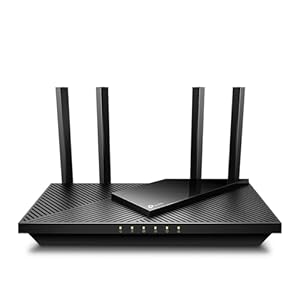
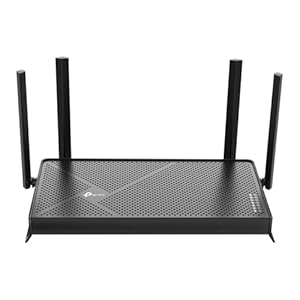
Spectrum provides a standard Wi-Fi router with service, but competitive gamers should consider upgrading to a dedicated gaming router. Models like the ASUS ROG Rapture GT-AX6000, Netgear Nighthawk XR1000, or TP-Link Archer GX90 include Quality of Service (QoS) features specifically designed to prioritize gaming traffic over other household data. These routers can reduce in-game latency by 5-15 milliseconds compared to standard consumer routers by intelligently managing bandwidth allocation.
When using your own router with Spectrum, you'll still need Spectrum's modem (or an approved DOCSIS 3.1 modem like the Motorola MB8611 or ARRIS SURFboard S33). Separating the modem and router gives you more control over your network configuration and allows you to position the router optimally for gaming. Spectrum does not charge a modem rental fee, but using their all-in-one gateway limits your configuration options.
Wired vs. Wireless Gaming on Spectrum
For competitive gaming on Spectrum, a wired ethernet connection is non-negotiable. Wi-Fi introduces variable latency (jitter) of 2-20 milliseconds even under ideal conditions, and interference from neighboring networks, household appliances, and physical obstacles can spike wireless latency to 50+ milliseconds. A CAT6 ethernet cable eliminates this variability entirely, providing consistent sub-millisecond jitter that makes the difference in competitive shooters and fighting games.
If running ethernet cable to your gaming setup isn't feasible, consider MoCA (Multimedia over Coax Alliance) adapters, which use your home's existing coaxial cable wiring to create a wired-like connection. MoCA 2.5 adapters deliver up to 2.5 Gbps with latency comparable to ethernet, making them an excellent alternative for Spectrum subscribers whose coaxial outlets are already installed throughout the home. Powerline adapters are a distant third option — they work but introduce more latency and speed variability than MoCA or ethernet.
Advanced Network Optimization for Spectrum Gamers
Beyond basic hardware, several network configuration tweaks can measurably improve your gaming experience on Spectrum's network.
DNS Server Optimization
Switching from Spectrum's default DNS servers to optimized alternatives can reduce initial connection times and improve game server lookups. Cloudflare DNS (1.1.1.1) and Google Public DNS (8.8.8.8) typically resolve queries 10-30 milliseconds faster than ISP-provided DNS servers. For gaming specifically, NextDNS or AdGuard DNS can also block ad-related traffic that competes for bandwidth during gaming sessions. Configure DNS settings on your router to apply the change network-wide, or set it per-device for gaming-specific optimization.
Port Forwarding and UPnP Configuration
Many online games require specific network ports to be open for optimal connectivity. Common gaming ports include UDP 3478-3480 (PlayStation Network), UDP 3074 (Xbox Live), and game-specific ranges like UDP 27015-27030 (Steam/Valve games) and UDP 5000-5500 (many Riot Games titles). While Universal Plug and Play (UPnP) handles port forwarding automatically for most games, manually configuring port forwarding for your primary gaming platform ensures consistent NAT type (Open/Type 1) and eliminates matchmaking restrictions that occur with Moderate or Strict NAT types.
Managing Household Bandwidth During Gaming Sessions
One of the most impactful optimizations for Spectrum gaming is managing competing traffic within your household. A 4K Netflix stream consumes 15-25 Mbps, a Zoom call uses 3-8 Mbps, and cloud backups can saturate your entire upload bandwidth. If you're on Spectrum's 300 Mbps plan with 10 Mbps upload, a single cloud backup running during your gaming session can destroy your gaming experience regardless of your download speed.
Use your router's QoS settings to prioritize gaming traffic, or schedule bandwidth-intensive activities (cloud backups, system updates, large downloads) during non-gaming hours. Many gaming routers include "Game Mode" or "Gaming Dashboard" features that automatically detect and prioritize gaming packets, reducing the need for manual configuration.
Troubleshooting Common Spectrum Gaming Issues
Even with an optimized setup, Spectrum gamers occasionally encounter performance issues. Here's how to diagnose and resolve the most common problems.
Packet Loss and Rubber-Banding
If you experience rubber-banding (your character teleporting or snapping back to previous positions), packet loss is the likely culprit. Run a continuous ping test to your game server or a reliable endpoint (ping 1.1.1.1 -t on Windows) while gaming to identify packet loss patterns. Consistent packet loss above 1% indicates a network issue that may require a Spectrum technician visit. Common causes include degraded coaxial cable connections, a failing modem, or local node congestion. Document packet loss with timestamps to provide Spectrum support with actionable data when reporting issues.
High Latency During Peak Hours
Spectrum's cable network shares bandwidth among subscribers on the same local node. During peak evening hours (7-11 PM), you may notice latency increases of 10-30 milliseconds. If peak-hour latency consistently exceeds 50 milliseconds to game servers, Spectrum's node serving your neighborhood may be overcrowded. Report consistent peak-hour congestion to Spectrum — they actively split overloaded nodes and upgrade infrastructure based on customer impact data. In the meantime, playing during off-peak hours or connecting to closer game servers can mitigate the issue.
Spectrum Internet 500 vs. Gig for Gaming
A common question is whether upgrading from Spectrum Internet 100 (100 Mbps) to Internet 500 (500 Mbps) or Internet 1 Gig (1 Gbps) improves gaming performance. For online gameplay alone, the answer is usually no — most games use 1-5 Mbps of bandwidth, and the latency and jitter characteristics are identical across Spectrum's speed tiers since they all share the same network infrastructure. However, higher speed tiers provide more headroom for simultaneous household usage, meaning your gaming latency is less likely to spike when family members stream, download, or video conference simultaneously. The Gig plan also comes with faster upload speeds (35 Mbps vs. 10 Mbps), which benefits game streaming and reduces upload contention.
Frequently Asked Questions
Is Spectrum good enough for online gaming?
Yes, for most gamers. Download speeds and latency are more than adequate for casual and moderately competitive play. The main limitation is upload speed, which primarily affects streamers and households with heavy simultaneous upload usage.
What is a good ping for gaming on Spectrum?
Spectrum users typically see 18–25 ms ping to nearby game servers, which is good for most games. Under 20 ms is considered excellent for competitive FPS games. If you consistently see above 40 ms to nearby servers on a wired connection, contact Spectrum support.
Do I need the Gig plan for gaming?
No. The 300 Mbps base plan is sufficient for online gaming. The Gig plan primarily benefits faster game downloads and provides the extra upload bandwidth needed for streaming gameplay. For plan comparisons, see our Spectrum plans guide.
Can I stream on Twitch with Spectrum?
Yes, but upload speed is the constraint. The Gig plan’s 35 Mbps upload supports 1080p/60fps streaming (6–8 Mbps) with headroom for gameplay. The base plan’s 10 Mbps upload makes reliable streaming very difficult. For serious streaming, fiber internet with symmetric uploads is strongly recommended.
Does Spectrum throttle gaming traffic?
No. Spectrum does not throttle or deprioritize specific types of traffic, including gaming. However, network congestion during peak evening hours may affect all traffic on your node, including gaming packets.
Should I use WiFi or Ethernet for gaming?
Always Ethernet when possible. WiFi adds 5–15 ms of latency, introduces jitter, and is susceptible to interference from microwaves, Bluetooth devices, and neighboring networks. If you cannot run an Ethernet cable, WiFi 6 on the 5 GHz band is the best wireless option. For wireless gaming setup advice, see our equipment guide.
Performance data from FCC testing and independent analysis. For speed metrics, see our Spectrum speed analysis. Check availability at your address.
Sources & Methodology
This article uses data from FCC Broadband Data Collection reports, U.S. Census Bureau demographics, and verified provider pricing and plan information. Pricing, speeds, and availability are verified against provider broadband nutrition labels and may vary by location. For a detailed explanation of our data collection and scoring process, see our methodology page.
Data Sources
- FCC Broadband Data Collection
- U.S. Census Bureau American Community Survey
- USAC Universal Service Fund
- NTIA Internet Use Survey
Last verified: March 2026. InternetProviders.ai is an independent resource. We may earn commissions from partner links — this does not affect our editorial recommendations. See our methodology for details.